
swimbooker offers a flexible and intuitive booking experience designed to suit every type of angler. From specific swims to lake exclusives, watercraft tickets to holiday lodges — venues can set up bookings their way, and we make it easy for you to find the best fit! 💡
📌 Note: If a venue doesn’t offer the booking type you’re looking for, it’s likely due to how they’ve set up that particular lake or accommodation.
🎟️ Booking Types on swimbooker
Here are the main types of bookings you might come across:
-
Watercraft Ticket – Access to the venue during a set period. Swims/pegs are selected on the day of arrival.
-
Specific Swim – Reserve an exact peg/swim for your trip. Ideal for anglers who like to plan their exact spot 🎯
-
Lake Exclusive – Book the entire lake or accommodation privately. Often includes a deposit and balance payment setup.
-
Package Booking – Pre-defined bundles (e.g. 2 anglers, 3 days) created by the venue. Just pick what suits you!
-
Accommodation – Book a cabin, lodge, pod, or camping spot.
📆 Step-by-Step Booking Process
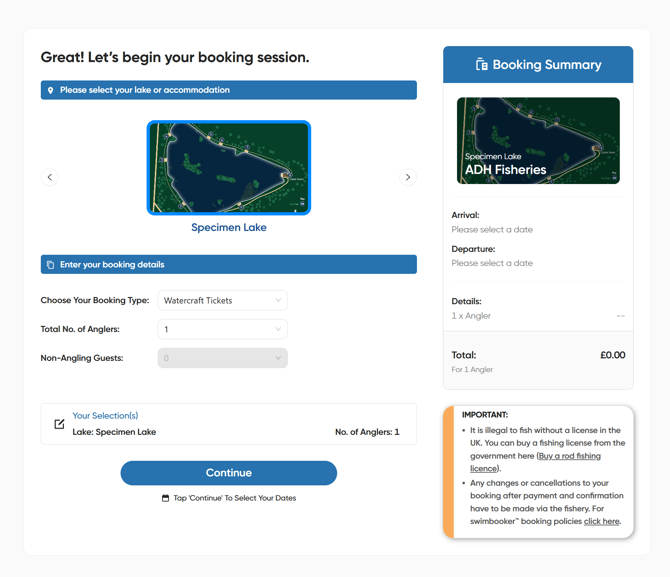
1. Start from the Venue Profile
Click Book Now on your chosen venue’s profile. You’ll see a list of available booking options — this could be lakes, accommodation, or specific packages.
2. Choose Your Booking Option
Under “Enter your booking details,” you'll see different form fields depending on the booking type. These may include:
-
Number of Anglers or Tickets
-
Non-Angling Guests (if supported)
-
Select a Package (for pre-set options)
-
Lake Exclusive Booking toggle
-
Booking Type dropdown (e.g. Watercraft Ticket, Specific Swim)
Once your details are in, click Continue.
3. Read the Pop-Up Info (If Shown)
Some venues include important notes — we recommend reading them before continuing.
4. Choose Your Dates
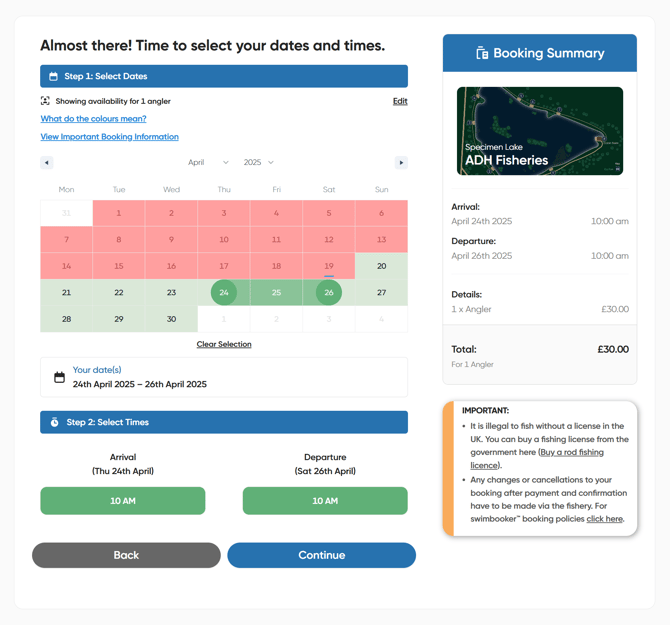
Use the calendar to select your session. Here’s what the colours mean:
-
🟥 Red – Fully booked (no arrival/departure times available)
-
🟧 Orange – Limited availability (day sessions may be full, but night sessions could still be open)
-
🟩 Green – Fully available ✅
-
🟩🔴 Green with red marker – Night session unavailable, but day session still bookable
If you can’t proceed, a popup will explain the restriction (set by the venue).
5. Select Your Time Slots
Pick your arrival and departure times based on the venue’s calendar. These can vary with seasons and venue preference.
Click Continue when ready.
6. (If Required) Select Your Swims
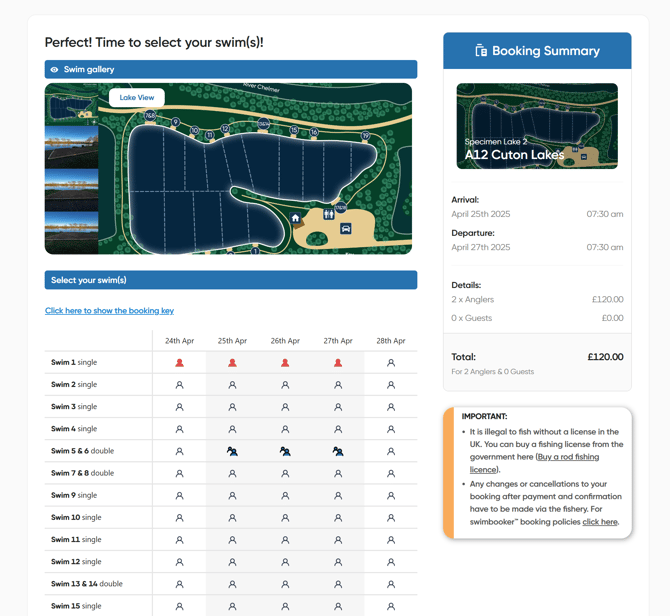
If you selected Specific Swim:
-
You’ll see a swim gallery and peg layout.
-
Grey highlights = your selected booking dates
-
Available swims = grey icons 🧍
-
Unavailable swims = red icons ❌
-
Click once for 1 angler (blue angler icon), twice for 2 anglers (double blue angler icon)
Click Continue when your selection is complete.
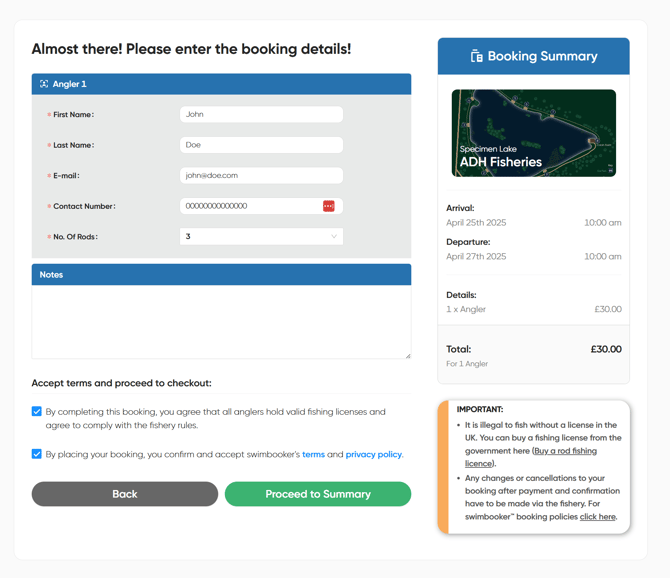
7. Add Angler & Booking Details
-
If logged in, details will auto-fill ✅
-
Guest checkout users will need to enter all fields manually
-
Some venues request extra info: vehicle reg, number of anglers, contact info, etc.
Tick to accept the venue’s terms, leave notes if needed, and proceed to the summary.
8. Review Your Booking
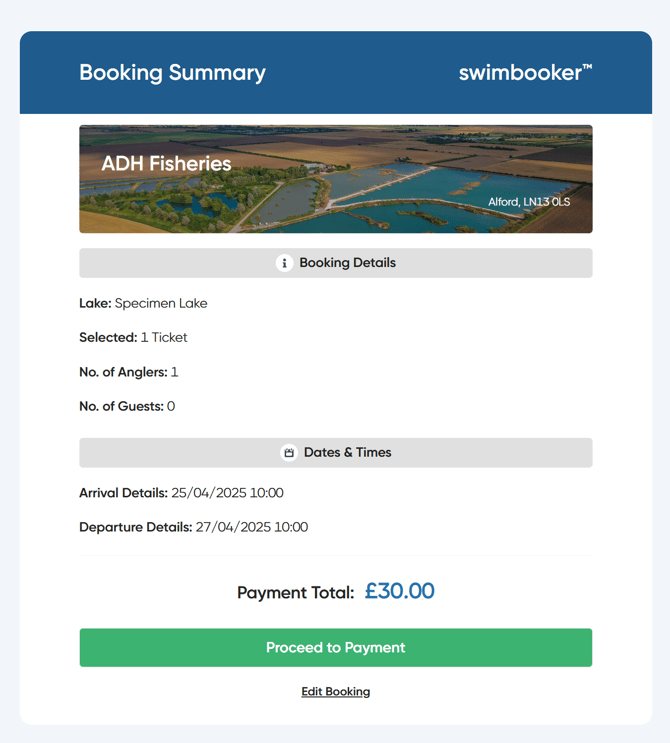
You’ll now see a summary of everything you selected. If it looks good, move ahead to payment!
💳 Payment & Confirmation
swimbooker supports:
-
Major credit & debit cards
-
Apple Pay for iOS users 🍏
-
Secure card storage via Opayo for quicker future checkouts
-
Coming soon: PayPal and Google Pay
After payment, you’ll see a booking success screen with:
-
Summary of your booking
-
Helpful swimbooker tips
-
Exclusive brand partner offers 🎁
You’ll receive:
-
A confirmation email right away
-
A reminder email 24 hours before your session
To check your bookings anytime, go to My Bookings in your swimbooker profile.
Need help? Our friendly support team is always ready to assist — just click here to chat with us. 😊